This article is for Managers who need to stop someone using Medic52 at their resort, for example when a patroller leaves or a seasonal worker finishes the season. It explains why you make a user inactive instead of deleting them, and how to do it on the web.
Before you begin
- You need the Manager role to see Configuration > Users.
- Making a user inactive and removing resort access are done on the web app at app.medic52.com. They can't be done from the mobile app.
Can I delete a user in Medic52?
No. A Manager can't delete a user in Medic52. Instead, a Manager makes the user inactive at the resort. Medic52 works this way because the user's incidents, patient care records, sign-on records and controlled substance records belong to your organisation and must be kept, with the user's name on them.
Making a user inactive:
- Stops the user signing in to your resort on the web and in the mobile app.
- Signs the user out of the mobile app the next time the app contacts Medic52, unless the user still belongs to another resort.
- Moves the user to the Disabled tab on the Users screen.
- Removes the user from lists such as patroller pickers and the Dispatch map.
- Frees the user's licence seat.
- Keeps every incident, check, training and controlled substance record the user created.
You can make the user active again at any time, for example when a seasonal patroller returns.
Should I make seasonal staff inactive at the end of the season?
Yes. When the season ends, make every seasonal worker who is no longer employed by you inactive, even if you expect them back next season. Making seasonal staff inactive at the end of the season is a good security precaution:
- Their phones are signed out. The Medic52 app on each seasonal worker's phone signs out the next time the app contacts Medic52, so nobody can open incident or patient information on a personal phone over the off-season.
- Nobody can sign in while they're not working for you. A former employee's login can't be used to view or change your records.
- Licence seats are freed for the staff who stay on, such as year-round or summer teams.
- Nothing is lost. Their incidents, training records and history stay in Medic52.
Making a user inactive is done one user at a time. At the start of the next season, make each returning worker active again (see below). The returning worker signs in with the same email address and password, and their role, access levels and training history are still there.
How do I make a user inactive?
To make a user inactive at your resort:
- Log in to the web app at app.medic52.com.
- In the left menu, go to Configuration > Users.
- Click the user's name.
- In the Profile section, set Active to No.
- Click Save user.
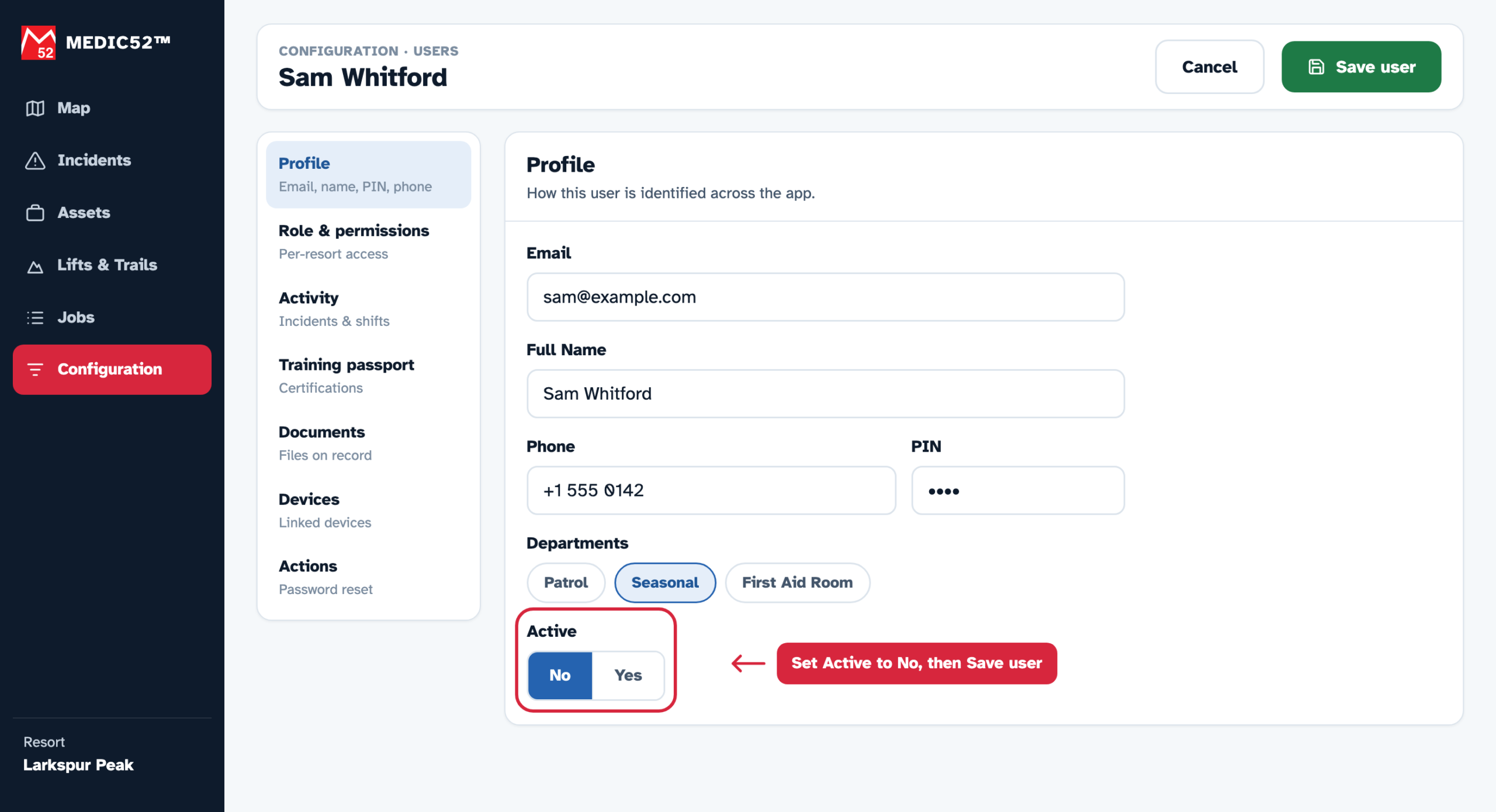
Note: A user who is inactive and then tries to sign in sees the message "You cannot login because your account has been disabled."
How do I make an inactive user active again?
To bring an inactive user back:
- Go to Configuration > Users and click the Disabled tab.
- Click the user's name.
- In the Profile section, set Active to Yes.
- Click Save user.
The user can sign in again with the same email address and password. Their role, module access levels and history are unchanged. An active user uses a licence seat again.
How do I remove a user from one of my resorts?
If you manage two or more resorts, the user's page also has a Resort access section. Use Resort access to take a user off one resort completely, for example when they move to another resort you manage.
- Go to Configuration > Users and click the user's name.
- In the Resort access section, find the resort and click Remove.
- Click Remove access to confirm.
Removing resort access takes away the user's role and permissions at that resort, and the user no longer appears on that resort's Users screen. The user's history at that resort is kept. Removing access takes effect immediately. You don't need to click Save user.
Important: In most cases, make the user inactive instead of removing their resort access. An inactive user stays on the Disabled tab, so you can see who used to work at the resort and bring them back in one step. You can't remove your own access to the resort you are signed in to.
Frequently asked
What happens to a user's incidents when I make them inactive?
Nothing changes. Incidents and patient care records the user created or edited stay in Medic52, unchanged, with the user's name on them. Who responded, and when, is part of the record.
Can I make all my seasonal staff inactive at once?
No. Medic52 doesn't have a bulk option for making users inactive. Open each user from Configuration > Users, set Active to No and click Save user. Adding a Seasonal Department makes seasonal staff easier to find in the list.
Does an inactive user still count against my licences?
No. Only active users count against your licence seats, shown under Settings > Resort Settings > Licenses.
Can a user's whole Medic52 account be deleted?
Yes, but only by the user or by Medic52 support, not by a Manager. A user can request deletion from the mobile app or by emailing support@medic52.com. Records that belong to your organisation are kept. See Deleting your account.
Should I share a login when someone leaves, instead of adding a new user?
No. Every user needs their own email address and login. Make the old user inactive and add the new person as a new user. See How do I add users?