Trail status is key information for everyone in an outdoor leisure facility. Trails can be slides in an aquapark, tube-park lanes, ropes courses, cross-country ski or bike trails, and downhill ski or mountain-bike runs.
Before you begin
- Set up your Departments.
- Configure your Areas.
- Create your Trails as Assets — the Trails dashboard lists the trails you have created there.
How to manage trail status
-
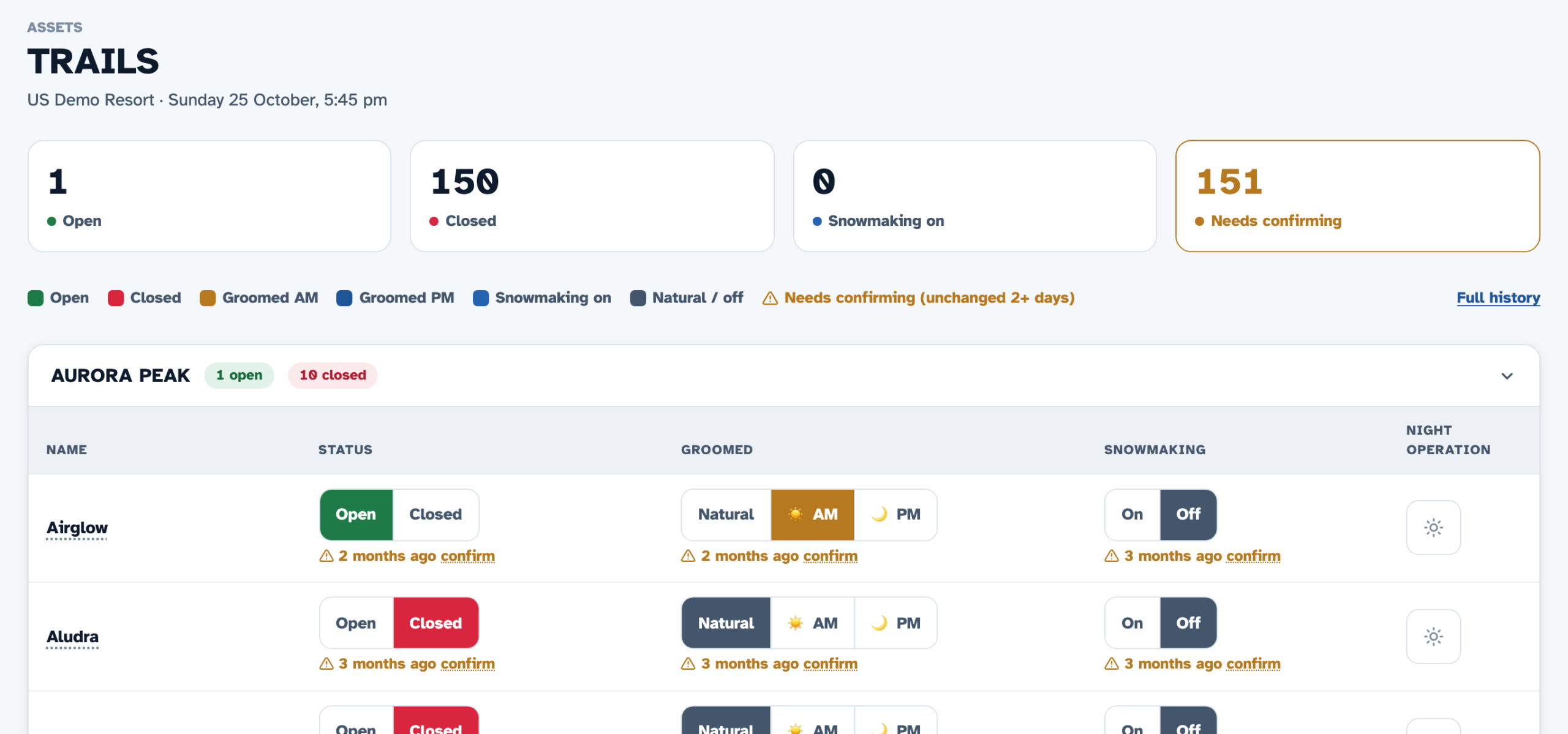
In the left menu, go to Assets > Trails. Trails are listed grouped by Area, with counters for Open, Closed, Snowmaking on and Needs confirming at the top, and open/closed counts per area.
-
On the trail's row:
- Click Open or Closed.
- Set Groomed to Natural, AM (groomed this morning) or PM (groomed tonight) for ski runs.
- Set Snowmaking to On or Off.
- Use the night operation toggle if the trail opens for night operations.
How do I see what changed on a trail?
Click the trail's name to open its Status history. It lists every change made today, newest first: opened, closed, grooming, snowmaking and night operation, with the time and who made the change. Choose Last 7 days to look further back.
For a longer period or every trail at once, click Full history (top right of the Trails dashboard, or at the bottom of the Status history panel). You can pick a date range and filter by trail name.
What does "Needs confirming" mean?
A trail setting that hasn't been changed or confirmed for 2 or more days is flagged Needs confirming. Click confirm on the row to verify it's still correct — this keeps the dashboard trustworthy for the whole team.
Who can see the trail status?
The dashboard is visible to all Medic52 users at your resort. You can also publish it live to your website with the Lifts and Trails plugin for WordPress — it updates as the data changes in Medic52, keeping your guests up to date.