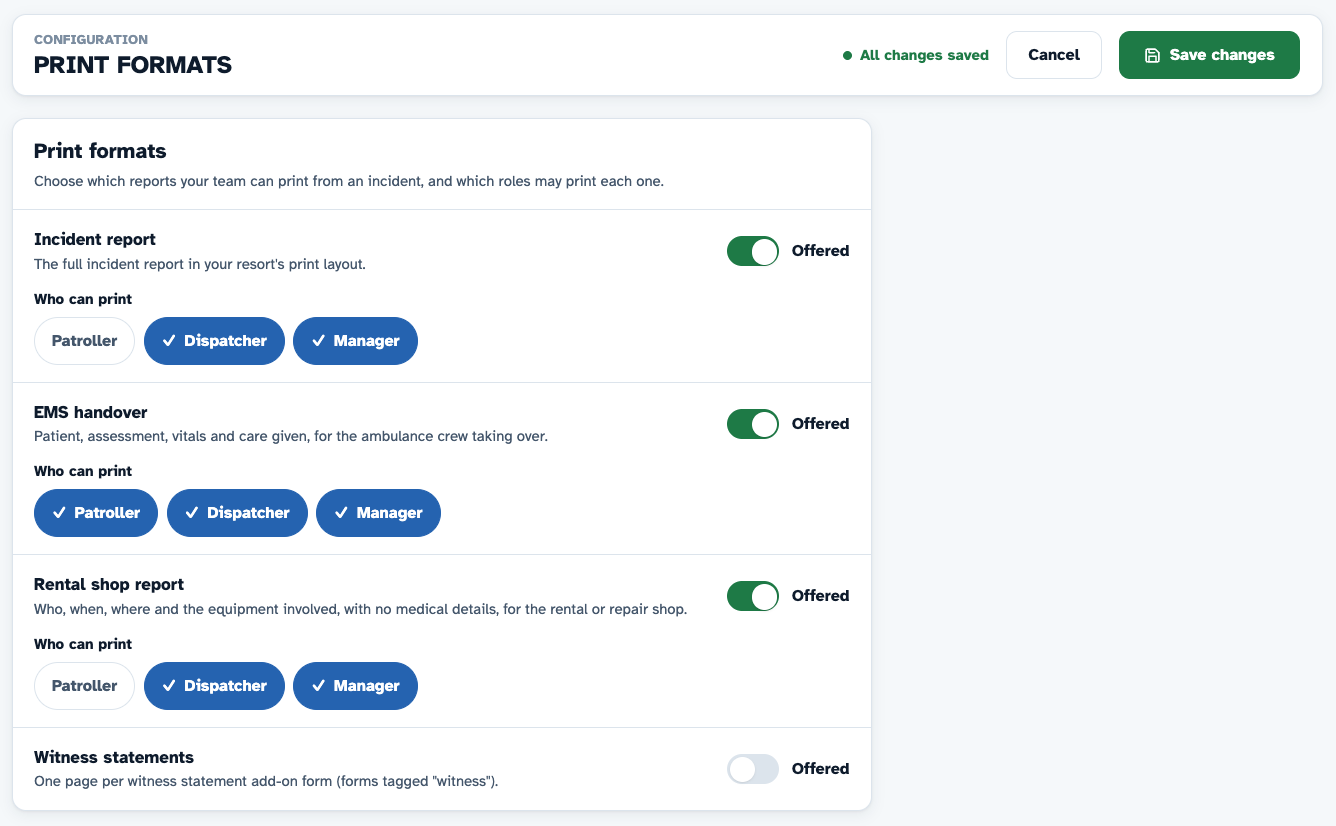
Managers can choose which reports their team can print from an incident, and which roles may print each one. For example, patrollers can print an EMS handover for the ambulance crew, while only dispatchers and managers can print the full incident report.
Before you begin
- You need incident Admin permission at your resort. The Print formats page sits in the Configuration menu, and the menu item is hidden without that permission.
What print formats are there?
Medic52 offers these print formats from an incident:
- Incident report: the full incident report in your resort's own print layout. It is offered to every role until you change it.
- EMS handover: the patient, the assessment, vital signs and the care given, for the ambulance crew taking over care.
- Rental shop report: who, when, where and the equipment involved (activity, bindings, DIN settings, equipment numbers), with no medical details beyond the injured area. Use it for the rental or repair shop.
- Witness statements: one page per witness statement form attached to the incident. This format is only listed if your organisation has a witness statement form set up for printing. Contact support to set one up. The Print menu only offers it when the incident has a witness statement attached.
- Field card: a 6 x 6 inch pocket field card filled from the incident. Only offered for organisations whose own print layout includes a field card.
The EMS handover, rental shop report and witness statements formats are switched off until a manager offers them.
How do I offer a print format and choose who can print it?
-
Open Configuration and select Print formats.
-
Find the format, for example EMS handover, and switch Offered on.
-
Under Who can print, select each role that may print this format: Patroller, Dispatcher or Manager. Select a role again to remove it.
-
Select Save changes.
Your changes apply the next time someone opens an incident.
How do I stop a role printing the full incident report?
- Open Configuration and select Print formats.
- Under Incident report, deselect the role in Who can print. For example, deselect Patroller so only dispatchers and managers can print the full report.
- Select Save changes.
What does my team see when they print?
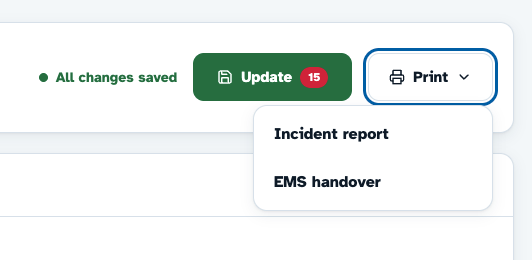
On an incident, the Print button shows only the formats that the signed-in user's role may print.
- If the user can print one format, Print creates that PDF straight away.
- If the user can print more than one format, Print opens a menu. The user selects the format they need.
- If the user's role may not print any format, there is no Print button.
What paper size do reports print on?
Every format prints on your resort's page size, A4 or US Letter, and fits the page. To change it, open Settings › Resort Settings. In the Configuration section, set Page size to A4 or US (US Letter), then save.
Why is the patient's name missing from a printout?
Patient details (name, date of birth, address, phone) only print for users who can see patient information. Users without patient information access still get the report, with a note that the patient details are not shown. To change this, edit the user's Incidents permission level in Configuration → Users.