The My Progress screen is available to every user and shows your own Training Passport progress: which assessments you have passed, what is still outstanding, and when certifications are due for renewal.
How to open My Progress
In the left menu, go to Training Passport > My Progress.
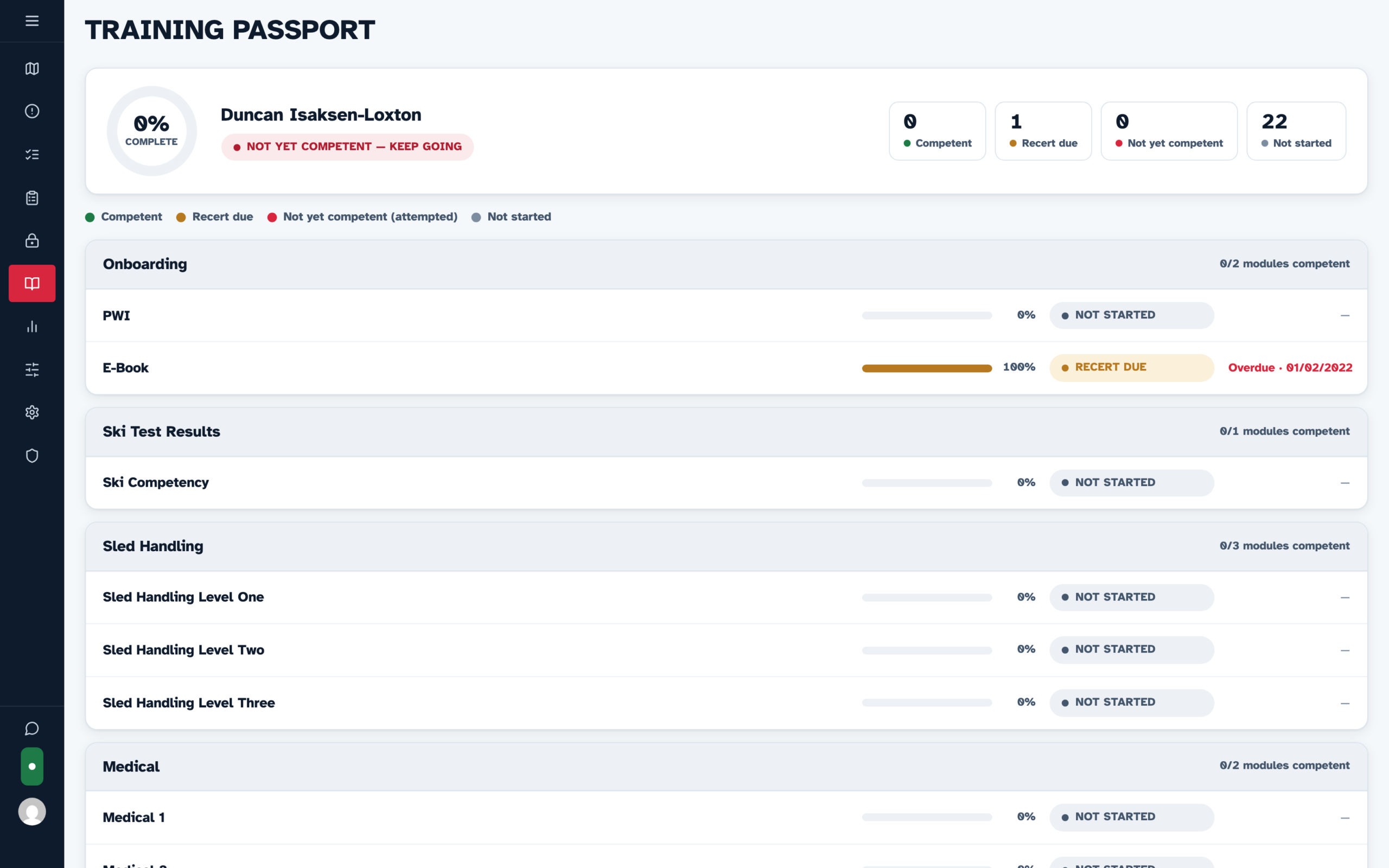
What the My Progress screen shows
At the top:
- Your overall completion percentage ring and your name.
- An overall status banner (for example, Not yet competent — keep going).
- Four counters: Competent, Recert due, Not yet competent, Not started.
Below, grouped by Unit, each assessment row shows:
- The assessment name and a progress bar with the percentage of its tasks complete.
- A status chip:
- Competent (green) — you have passed and the pass is current.
- Recert due (amber) — you passed, but the validity period has lapsed or is lapsing; the row shows the overdue/renewal date.
- Not yet competent (red) — attempted but not yet passed.
- Not started (grey) — no tasks assessed yet.
- The next review date, where one applies.
Each unit's header shows how many of its assessments you are competent in (for example, 0/3 modules competent).
On the Medic52 mobile app
You can also check your progress on your phone: tap Profile, then Training > My progress. It shows the same statuses, colours and review dates as the web page. Tap an assessment to see each task, who signed it off, when it renews, and any assessor comments.
The app keeps a copy of your progress, so you can still view it with no signal. When you are offline, a banner shows when that copy was saved. Pull down on the list to refresh it.
The app is view-only. Assessors still sign tasks off in the web dashboard.
Who assesses me?
Assessors qualified for an assessment sign you off — see Provide User Assessments. Once every task in an assessment is marked, your status updates automatically.