Incidents progress through a lifecycle, from call received through to completion. The status field tracks where each case is up to, and drives the pin colours on the Dispatch map.
What are the statuses of an incident?
- Call received — a new incident is added and needs attention.
- Assigned — the incident has been assigned to a patroller to investigate.
- Departure from Homebase — the assigned patroller has left base, and the departure time is noted.
- On scene — the patroller is on scene with the patient.
- Transport started — the patroller and patient are in transit to the base or medical centre.
- Arrived at base clinic — the patroller and patient are at the base.
- Departure from base clinic — the patient has left your care.
- Pending documentation — the patroller has yet to complete documentation and close the case.
- Case closed — the case is complete and closed.
A Deleted status also exists, for incidents that have been deleted.
Your resort may have switched some of these off. Call received, Pending documentation, Case closed and Deleted are always on. A manager can switch off the others in Settings > Resort Settings > Incident statuses; see How do I turn off incident statuses I don't use?. A switched-off status disappears from the status pickers and from the app's response bar. Past incidents keep the statuses they already have.
What do the pin colours on the Dispatch map mean?
- Red pins — Call received, Assigned and Departure from Homebase: cases not yet being directly handled on scene. Red makes them easy to spot.
- Green pins — On scene, Transport started and Arrived at base clinic: a first responder is attending, and dispatch is in a supporting role.
- Grey pins — Departure from base clinic and Pending documentation: the patient is no longer in your care and the case is awaiting final review or paperwork.
- White pins — Case closed cases.
How do I change an incident's status on the Dispatch map?
- Click the incident's pin (or pick it from the Active incidents panel at the bottom left — most recent first; closed cases drop off the list).
- In the incident panel, choose the new status from the Status dropdown. The list leaves out statuses your resort has switched off, but always shows the incident's current status.
When dispatch asks staff to respond and someone accepts, the status moves on automatically to Departure from Homebase, or Assigned if that status is switched off. See How do I ask staff to respond to an incident?.
How do responders change status in the app?
Once an incident is assigned to them, responders move it on from the response bar at the top of the incident in the Medic52 mobile app (mobile 1.1.0 or later), using a big button for the next status. The bar only offers statuses your resort has switched on, and Other status (the ⋮ button) covers calls that skip steps. Each tap is stamped with the time on the responder's phone. See How do I respond to a request from dispatch in the app?.
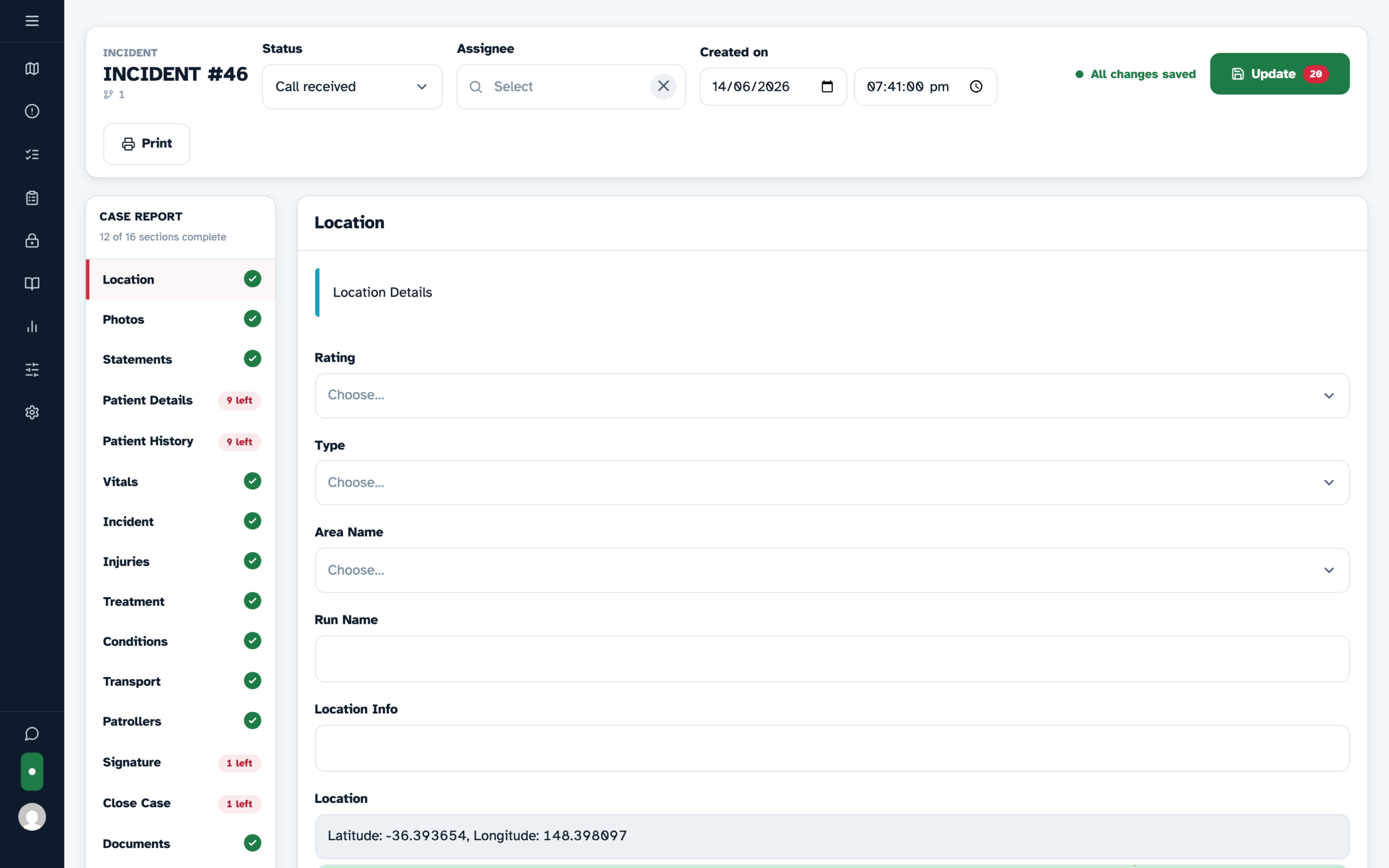
How do I change an incident's status from the incident screen?
-
Open the incident and use the Status dropdown at the top of the screen.
-
Click the green Update button to save.
Is there a record of status changes?
Yes — every status change is logged with the date, time and the username that made the change. This history appears in the printable incident report, supporting your audit trail.
When a responder changes status in the app, the logged time is the time they tapped on their phone, even if they had no signal and the update reached Medic52 later. On the Dispatch map, the incident Log marks these times with a phone icon (hover text On phone) and shows sent with the arrival time and (no signal) when it arrived late, for example sent 11:04 (no signal). See How do I ask staff to respond to an incident? for how to read the log.