Response-time targets tell Medic52 how long each step of a response should take, such as 3 minutes from the call to assigning someone, then 4 more minutes to leave base. The dispatch map warns dispatchers when a step is running late, and the Response times report shows how every incident did against its targets. Targets are optional and set per resort.
Before you begin
- You need the Manager role to set targets (Settings › Resort Settings is hidden otherwise).
- Managers and dispatchers can open the Response times report. Patrollers can't.
- Targets apply only to statuses your resort uses. A status you've turned off has no target.
How are response-time targets measured?
Each target measures one step: the time from the previous status the incident reached to this status. The time from the call to any status is the sum of the steps before it.
For example, with a target of 3:00 for Assigned and 4:00 for Departure from Homebase, a responder should be assigned within 3 minutes of the call and leave base within 4 minutes of being assigned. Departure is due 7 minutes after the call.
You can set a target for these statuses: Assigned, Departure from Homebase, On scene, Transport started, Arrived at base clinic and Departure from base clinic. Call received is the starting point, so it has no target.
Each step can also have a Warn at time, earlier than the target. The warning gives dispatchers notice before a step becomes late.
How do I set response-time targets?
- Go to Settings › Resort Settings.
- Open the Incident statuses section.
- Next to each status you want to time, enter a Target. Type minutes (for example
5) or minutes and seconds (for example4:30). - Optionally, enter a Warn at time for the same status. It must be shorter than the target.
- Check the Due … after the call line under each status. It shows the running total from the call.
- Click Save changes.
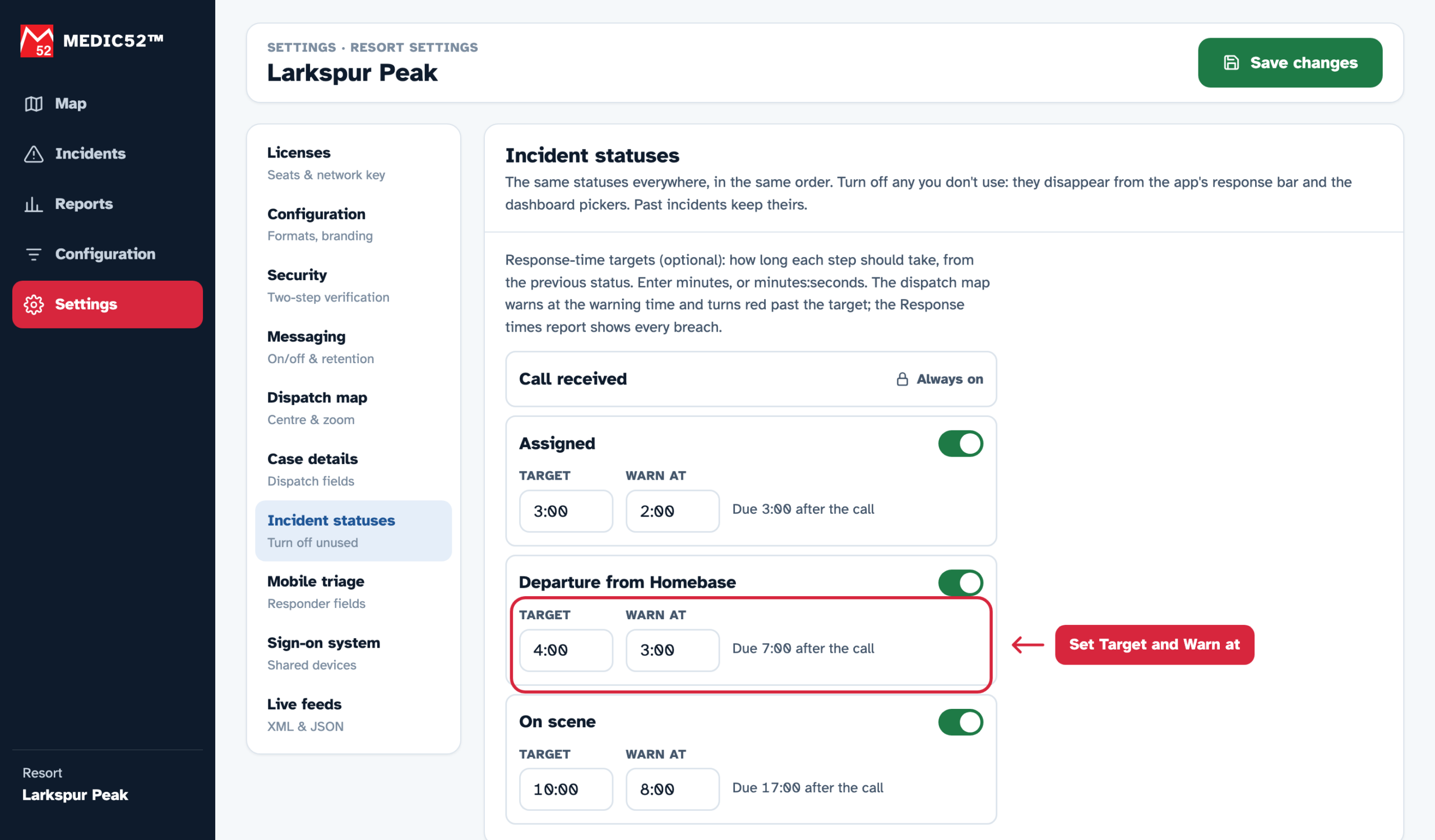
To stop timing a status, clear its Target and save. Targets can be up to 24 hours.
Note: If a time isn't valid, Medic52 shows why under the field ("Use minutes, or minutes:seconds, up to 24 hours", "Set a target first" or "Warn before the target") and won't save until it's fixed.
What does the dispatch map show when a response is late?
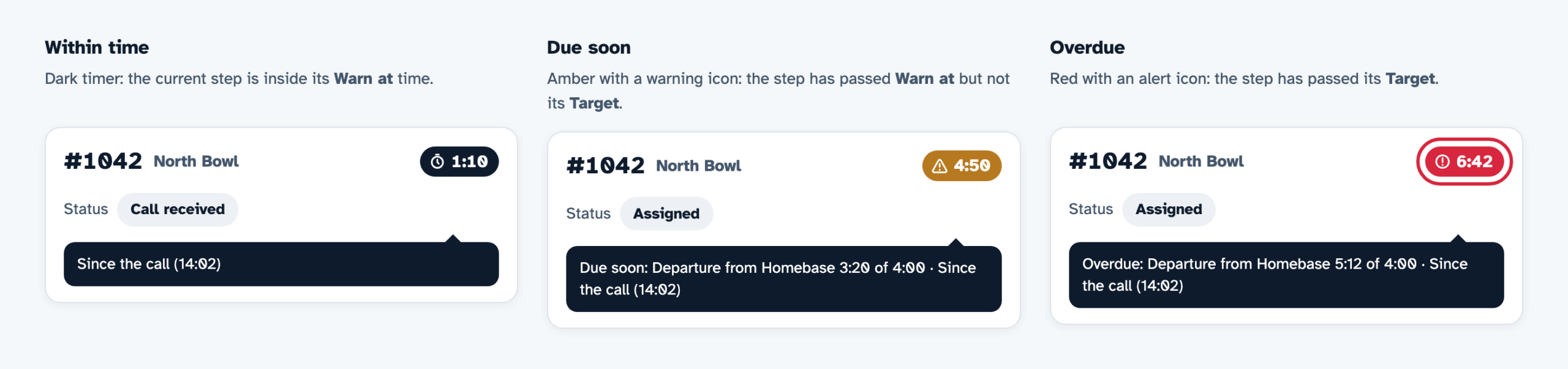
When an incident is open on the dispatch map, the call timer in the incident panel header counts the time since the call. With response-time targets set, its colour shows how the current step is doing against its target:
- Dark (normal): the current step is within its Warn at time.
- Amber with a warning icon (Due soon): the current step has passed its Warn at time but not its target.
- Red with an alert icon (Overdue): the current step has passed its target.
Hover over the call timer to see which step is late, for example "Overdue: Departure from Homebase 5:12 of 4:00 · Since the call (14:02)". Screen readers announce the same text, so the warning never relies on colour alone. When the incident reaches the next status, the colour resets and the call timer starts checking the next step.
How do I review response times after the fact?
- Go to Reports › Response times.
- Choose a Date range: Today, or a Custom date range with From and To dates.
- Read the summary for each status: how many incidents met the target (within the target time) and the median time for that step.
- Read the row for each incident. It shows Call received, the Responder, and the time each step took, marked Met, Past warning or Breach.
- Click Download CSV to export the report, for example for a season review or a contract report.
The report shows the first 5,000 incidents in the range. If you have more, narrow the date range. The report contains no patient details.
Frequently asked
Why does the Response times report say "No response-time targets set"?
The Response times report needs at least one target. Set targets in Settings › Resort Settings › Incident statuses, or click Open settings in the report, then come back to the report.
Do response-time targets change past incidents?
Response-time targets don't change any incident. The Response times report measures past incidents against the targets you have now, so if you change a target, older incidents are re-measured against the new one.
Is a step measured from the call or from the last status?
Each step is measured from the previous status the incident reached. The Due … after the call line in settings adds the steps together, so you can see the total from the call.
Does the mobile app show response-time targets?
The amber and red timer is on the web dispatch map. Patrollers update statuses from the app's response bar as usual, and those status times feed the timer and the report.