This article is for team members who need to change a Job (Work Mission) after it has been created: editing its details, moving it from Open to In progress to Done, managing attachments and checking its history.
Before you begin
- You need the User or Admin Jobs permission to edit a Job, change its status or change its attachments. Users with Read-only permission see Job cards but cannot open them or see the status button.
- To see the History button you also need the Administrator or Manager role.
- The Job must already exist. See How do I create a Job (Work Mission)?.
How do I start a Job and mark it complete?
A Job moves through three statuses: Open, In progress and Done. Each Job card shows one button, for the next step only.
- In the left menu, go to Jobs. Open the To do tab to find Open Jobs.
- On the Job card, click Start job. Medic52 shows "Job started" and the Job moves to the In progress tab.
- When the work is finished, open the In progress tab and click Mark complete on the Job card. Medic52 shows "Job completed" and the Job moves to the Done tab.

Important: A Job can only move forward. There is no button to reopen a Done Job or move an In progress Job back to Open.
The Done tab lists the most recently completed Jobs first, and each card shows the time the Job was completed instead of the due time.
How do I edit a Job?
Editing changes the Job's details. It does not change the Job's status.
- In the left menu, go to Jobs and find the Job in its tab. Use All, Mine or My departments to narrow the list.
- Click anywhere on the Job card, except on its buttons. The Edit job form opens.
- Change the Job category, Department, Job details, Assignees, New members, Due or Attachments as needed.
- Click Save job.
The bar at the top of the form shows Unsaved changes until you save, then All changes saved. Click Cancel to leave without saving.
Note: When you open an existing Job, Due shows Pick a date with the Job's current date and time. Choose Now, Today or Tomorrow to replace it.
How do I add or change the people assigned to a Job?
- Open the Job as described above.
- In Assignees, select more people from your resort's users, or remove existing ones.
- To assign someone who does not have a Medic52 account at your resort yet, enter their email in New members. Medic52 invites that person to your resort and assigns the Job to them. New members are subject to your licensing.
- Click Save job, or Save and email assignees to send an assignment email too.
Who receives the email from Save and email assignees?
Only people newly added to the Job in that save receive the assignment email. People who were already assigned are not emailed again. People who have turned off operational emails in their own settings are skipped.
How do I add or delete an attachment on a Job?
A Job can have up to 3 attachments. Each file must be a PDF, JPG, JPEG or PNG of 20 MB or less.
To add an attachment:
- Open the Job and go to Attachments.
- Choose a file. Wait for Uploading… to finish. The file appears in the list.
- Click Save job. A file you added and then changed your mind about can be dropped before saving with Remove.
To download an attachment, click Download beside the file. The download link is temporary and signed for security, so open the Job again to get a fresh link if it has expired.
To delete an attachment that is already saved on the Job:
- Open the Job and go to Attachments.
- Click Delete beside the file.
- In the Delete this attachment? message, click Delete attachment.
Deleting a saved attachment takes effect immediately; you do not need to click Save job. If the Job already has 3 attachments, delete one before adding another.
How do I see a Job's history?
The History button on a Job card opens the Status history for that Job. It lists every status change with the Date, who it was Changed by, and the status Before and After (shown as pending, in progress or complete). The newest change is first.
- In the left menu, go to Jobs.
- On the Job card, click History.
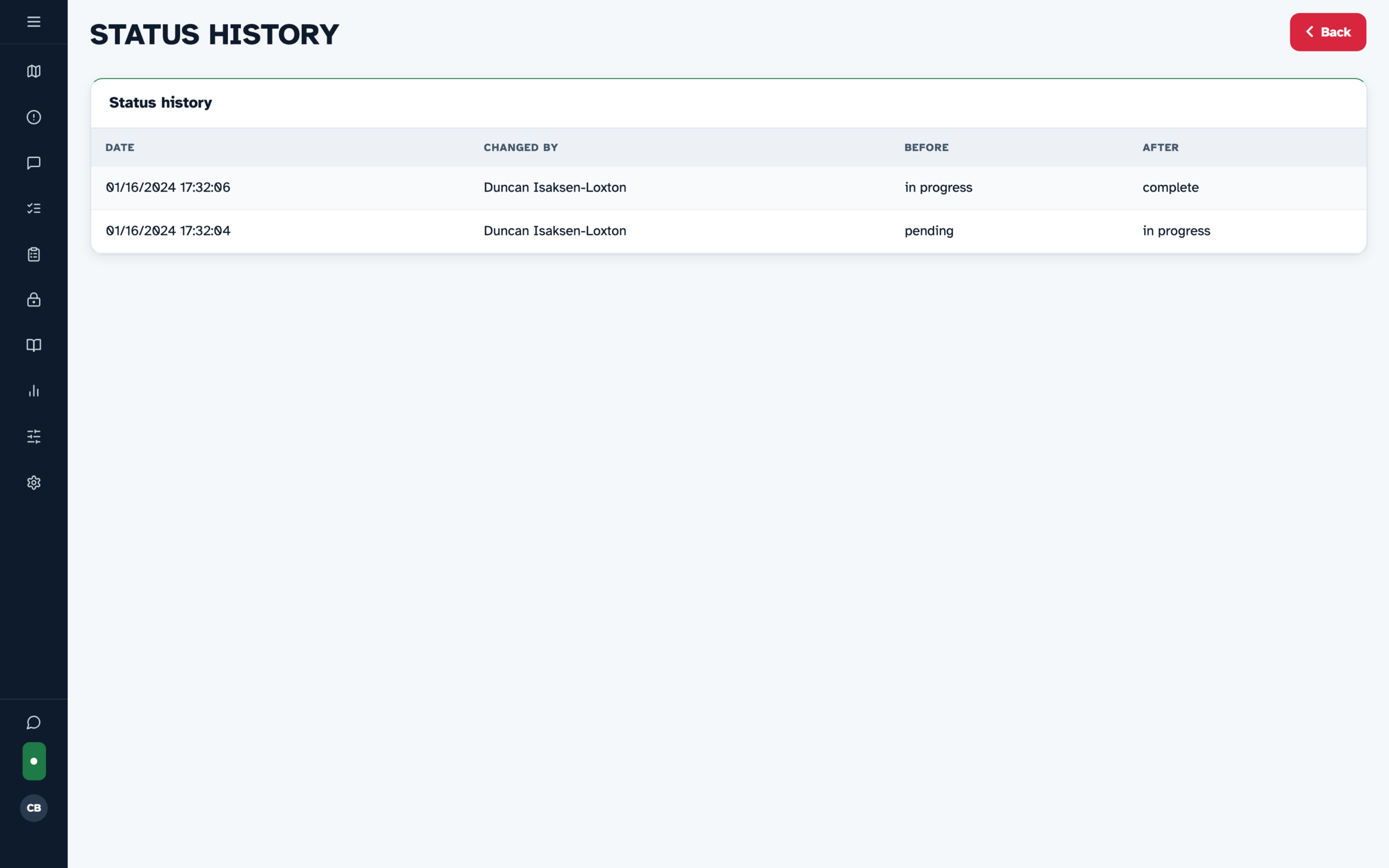
Note: The History button is shown only to users with the Administrator or Manager role. Saving the Edit job form also adds a row, with the same status in Before and After. The history does not show which details were changed.
Frequently asked
Can I delete a Job?
No. Medic52 does not have a way to delete a Job, and the Job form has no delete button. Move a Job that is no longer needed to Done, and describe in the Job details if the work was cancelled.
Does editing a Job change its status?
No. Saving the Edit job form leaves the status as it was. Only Start job and Mark complete change the status.
Why is there no Start job button on my Job card?
Either the Job is already Done, or your Jobs permission is Read-only. Read-only users see Job cards but cannot open them or change their status.