Jobs (also called Work Missions) are a company-wide task list in Medic52. Any team member can ask another department for work, and that department can see, start and complete the request, even when the two teams work different shifts. This article explains what Jobs are, how the Jobs screen works, and who can do what.
What are Jobs and Work Missions?
A Job is a single task for one department or person. Each Job has a Job category, a Department, Job details (what needs doing), optional Assignees, a Due time and up to three Attachments. Different departments have different responsibilities, and Jobs keep requests visible so nothing gets missed and safety is maintained.
Jobs are best for one-off tasks. For work that repeats on a schedule, use Asset Checks instead. See Jobs vs Asset Checks.
Examples of Jobs
- Grooming request. A patroller sees a lift unload area going off camber and creates a Job for the Grooming department. When the Grooming team starts shift, the Job is in their To do list.
- Maintenance request. A hospitality team member puts out a warning sign for a trip hazard, then creates a Job for the Maintenance department to fix the hazard.
- Motor pool request. A team member notices a loose seat on a quad bike and creates a Job for the motor pool to check the vehicle.
How do I open the Jobs screen?
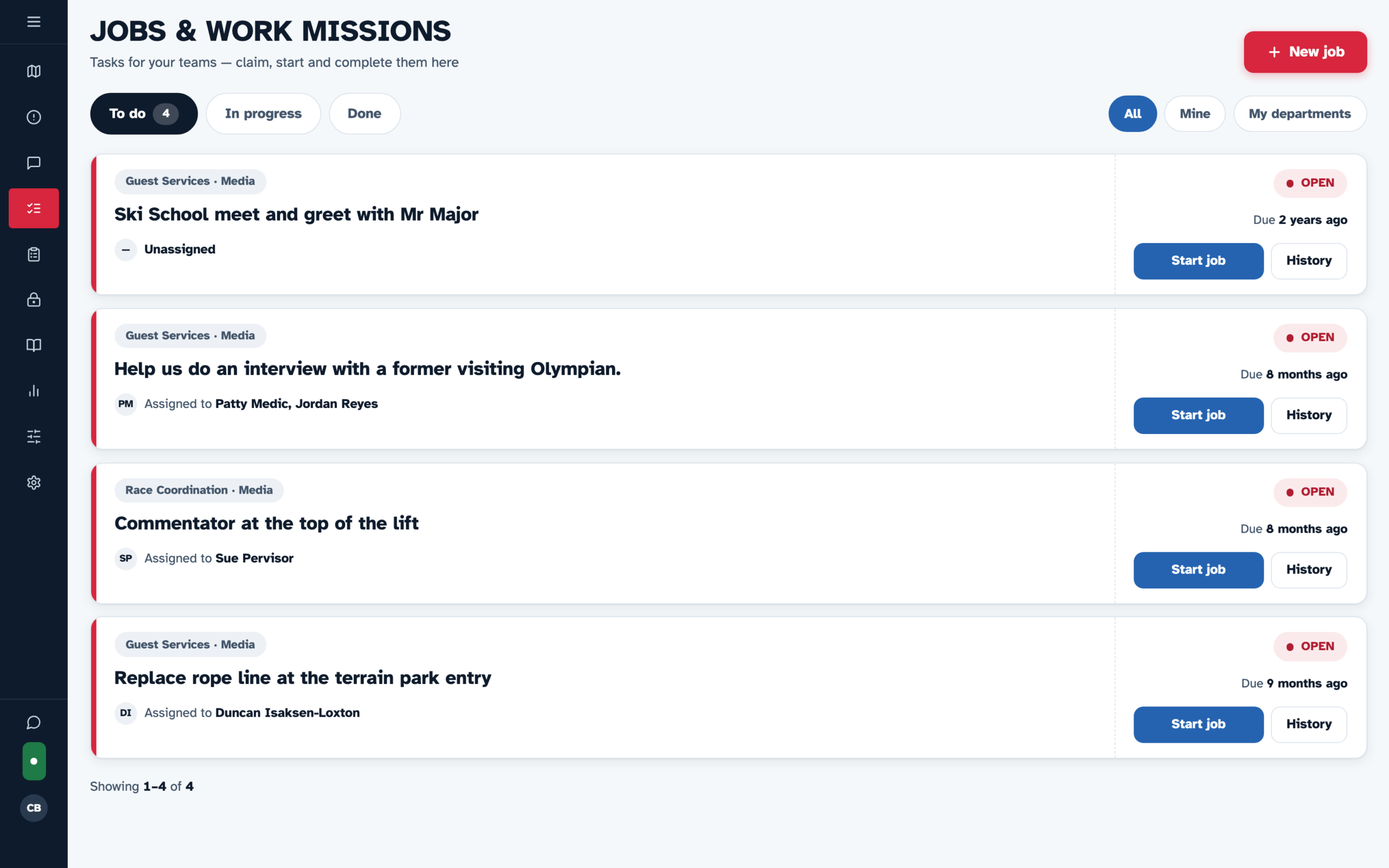
In the left menu, go to Jobs. The page is titled Jobs & Work Missions.
What do the To do, In progress and Done tabs show?
The tabs at the top of the Jobs screen split Jobs by status. The number beside the selected tab is the total of Jobs in that tab for the current filter.
| Tab | Jobs shown | Button on the Job card |
|---|---|---|
| To do | Jobs with status Open. This tab opens first. | Start job |
| In progress | Jobs someone has started. | Mark complete |
| Done | Completed Jobs, most recently updated first. | None |
| Deleted | Deleted Jobs, newest deletion first. Shown only to Jobs admins. | None (open the card to Restore job) |
A Job card in the Done tab shows the time it was completed in place of the due time.
What do All, Mine and My departments mean?
The three filters beside the tabs decide which Jobs the list includes.
- All — every Job at your resort. This is the default.
- Mine — Jobs where you are one of the assignees.
- My departments — Jobs belonging to a department you are a member of.
The list shows 10 Jobs per page. Use the page-size control under the list to show 50 or 100 per page.
What does a Job card show?
Each card shows the Job category and Department, the Job details, who the Job is Assigned to (or Unassigned), a status badge (Open, In progress or Done) and the Due time. Click a card to open the Job and edit it.
Who can do what with Jobs?
What each person can do depends on their Jobs permission level, set by a manager on the user's profile.
| Jobs permission | View the list | Create and edit Jobs, change status, add attachments | Configure Job Categories |
|---|---|---|---|
| None | No (the Jobs menu is hidden) | No | No |
| Read-only | Yes, but cards cannot be opened and the status button is not shown | No | No |
| User | Yes | Yes | No |
| Admin | Yes | Yes | Yes |
Creating, editing and deleting a Job need User or Admin. The Deleted tab and Restore job need Admin.
The History button on a Job card is shown only to users with the Administrator or Manager role. See Updating a Job for what it shows.
Frequently asked
Can I delete a Job?
Yes. Open the Job and click Delete job, then give a reason. The Job and its history are kept for audit. Jobs admins can see deleted Jobs on the Deleted tab and restore them. See How do I delete a Job, or restore one I deleted?.
Can I move a Job back to To do?
No. A Job card only offers the next step: Start job on an Open Job and Mark complete on an In progress Job. There is no way to reopen a Done Job.
Why can't I open a Job or see the Start job button?
Your Jobs permission is probably Read-only. Ask a manager to change it to User.